


계산기
React / Typescript / Styled-Components
2022.12.22.
계산기
윈도우 계산기를 사용하다가 간단한 계산기를 만들어보고 싶어서
React, TypeScript, Styled-Components를 사용하여 계산기를 만들게 되었습니다.
C = 초기화 / CE 한칸씩 지우기 / . 소수점 / 사칙연산
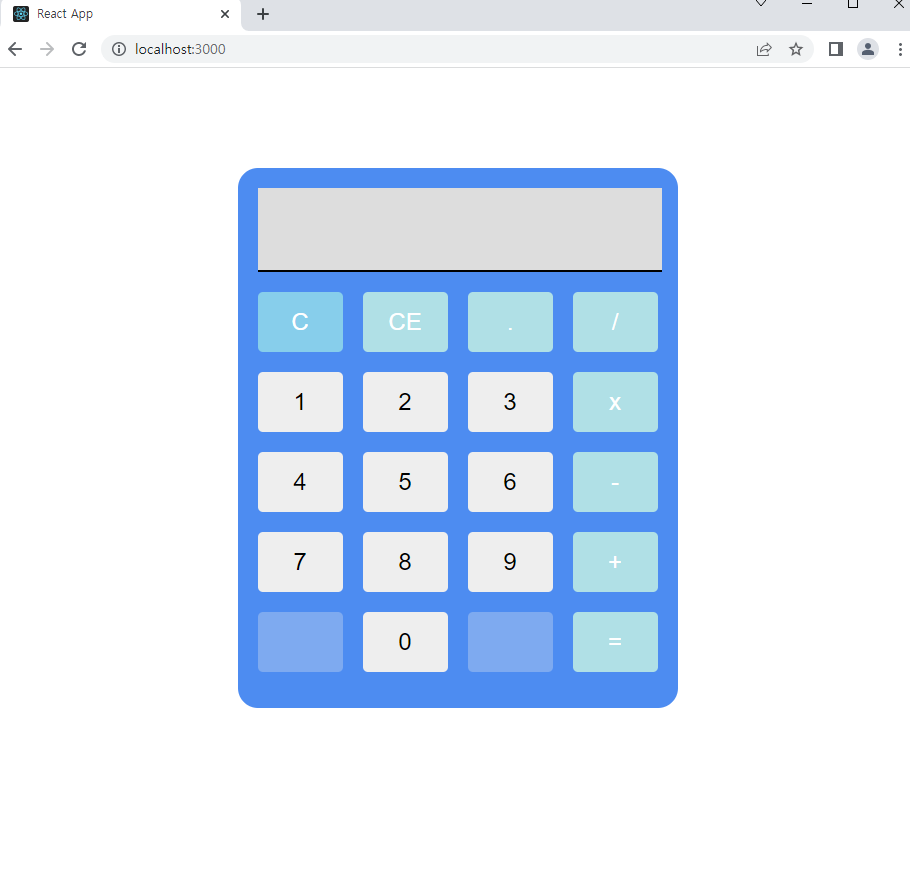
계산식을 넣고
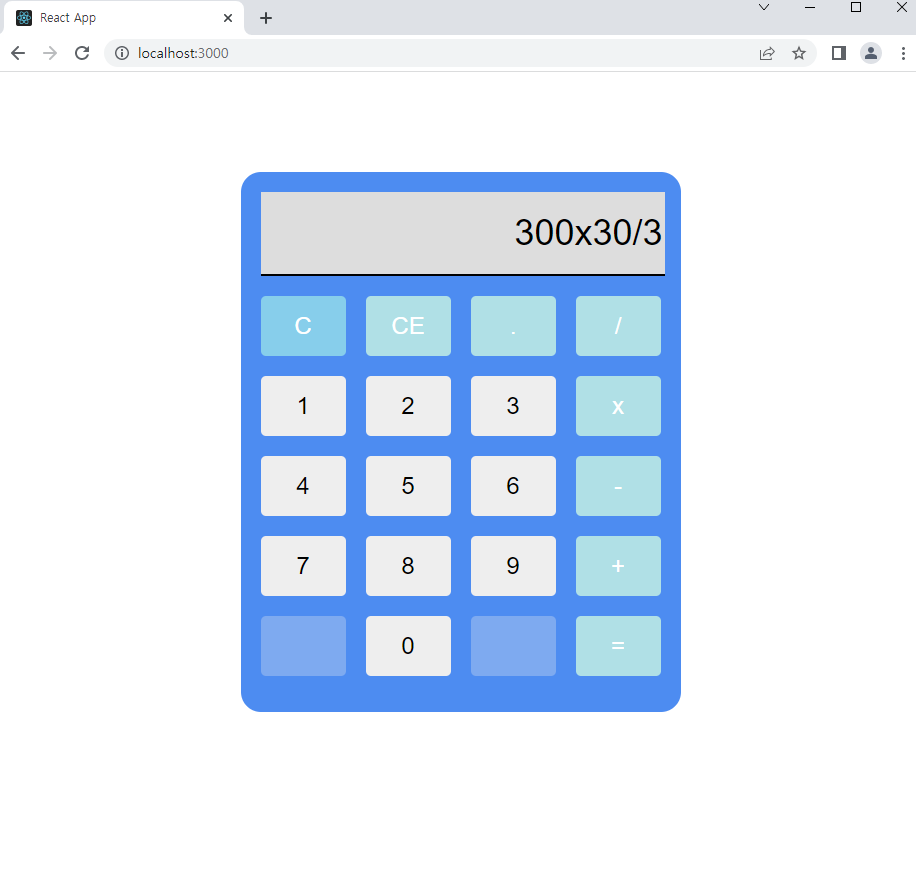
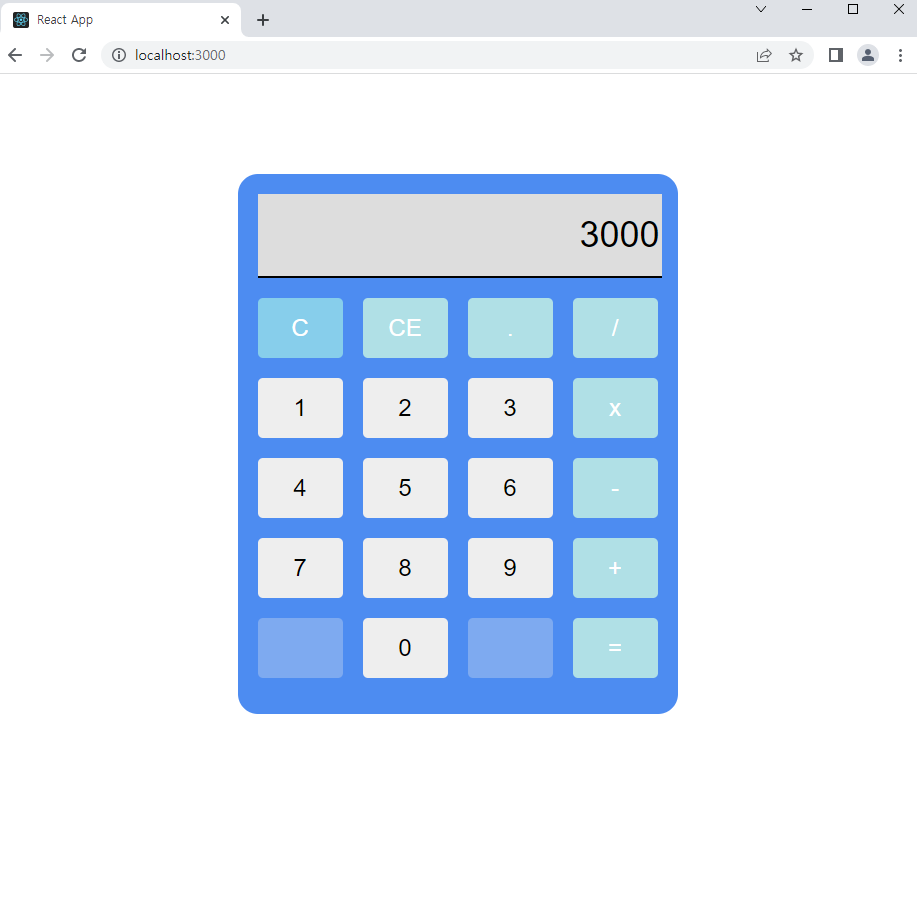
= 버튼을 누르면 계산
아래는 계산기 소스 코드입니다.
//App.tsx
import Adder from './commponent/adder'

const App = () => {
  return <Adder />
}

export default App
//adder.tsx
import React, { useState } from 'react'
import styled from 'styled-components'
interface BackgroundProps {
backgroundColor: string
}
const Calculator = styled.div`
background-color: #4d8cf1;
width: 400px;
height: 500px;
margin: 100px auto;
border-radius: 20px;
padding: 20px;
`
const DisplayInput = styled.input`
background-color: #ddd;
width: 100%;
height: 80px;
font-size: 36px;
text-align: right;
border: none;
border-bottom: 2px solid black;
margin-bottom: 20px;
`
const Buttons = styled.div`
display: grid;
grid-template-columns: repeat(4, 1fr);
grid-gap: 20px;
`
const Button = styled.button<BackgroundProps>`
background-color: ${props => props.backgroundColor};
color: ${props => props.color || ''};
border: none;
width: 100%;
height: 60px;
font-size: 24px;
border-radius: 5px;
cursor: pointer;
&:hover {
background-color: #ddd;
}
`
const Adder = () => {
const [value, setValue] = useState<string>('')
const handleClick = (event: React.MouseEvent<HTMLButtonElement>) => {
switch (event.currentTarget.value) {
case 'C': //전체 clear
setValue('')
break
case 'CE': //한칸씩 clear
setValue(String(value).substring(0, String(value).length - 1))
break
case '=':
setValue(eval(value.replace('x', '*'))) //곱셈은 변환해줘야함
break
default:
setValue(value + event.currentTarget.value)
break
}
}
const buttons = [
{ value: 'C', color: 'white', backgroundColor: 'skyblue' },
{ value: 'CE', color: 'white', backgroundColor: 'powderblue' },
{ value: '.', color: 'white', backgroundColor: 'powderblue' },
{ value: '/', color: 'white', backgroundColor: 'powderblue' },
{ value: '1', backgroundColor: '#eee' },
{ value: '2', backgroundColor: '#eee' },
{ value: '3', backgroundColor: '#eee' },
{ value: 'x', color: 'white', backgroundColor: 'powderblue' },
{ value: '4', backgroundColor: '#eee' },
{ value: '5', backgroundColor: '#eee' },
{ value: '6', backgroundColor: '#eee' },
{ value: '-', color: 'white', backgroundColor: 'powderblue' },
{ value: '7', backgroundColor: '#eee' },
{ value: '8', backgroundColor: '#eee' },
{ value: '9', backgroundColor: '#eee' },
{ value: '+', color: 'white', backgroundColor: 'powderblue' },
{ disabled: true, backgroundColor: '' },
{ value: '0', backgroundColor: '#eee' },
{ disabled: true, backgroundColor: '' },
{ value: '=', color: 'white', backgroundColor: 'powderblue' },
]
return (
<Calculator>
<DisplayInput value={value} type="text" readOnly />
<Buttons>
{buttons.map(button => (
<Button
key={button.value}
onClick={handleClick}
value={button.value}
color={button.color}
backgroundColor={button.backgroundColor}
disabled={button.disabled}
>
{button.value}
</Button>
))}
</Buttons>
</Calculator>
)
}
export default Adder계산기 Button은 Map으로 구현했습니다.
Button 부분을 클릭하였을 때 event.currentTarget.value값을 활용했습니다.
clear 기능/back 기능/사칙 연산기능을 구현했습니다.
=부분은 eval()를 사용했습니다.
eval을 사용하면 ‘3+2’ 문자열을 계산식으로 바꿔줘서 num5라는 결괏값을 줍니다.
그러므로 사칙연산을 간단하게 구현할 수 있었습니다.
하지만 eval은 검토 후 사용하시길 권장합니다.
이유는 바로 보안이슈가 있기 때문입니다.
이상으로 react+typescript를 이용한 계산기 구현이었습니다.